Harris Aerial Support
Training & Operational Best Practices
Training & Operation best practices
Mission Planning
Mission Planning
Surveying
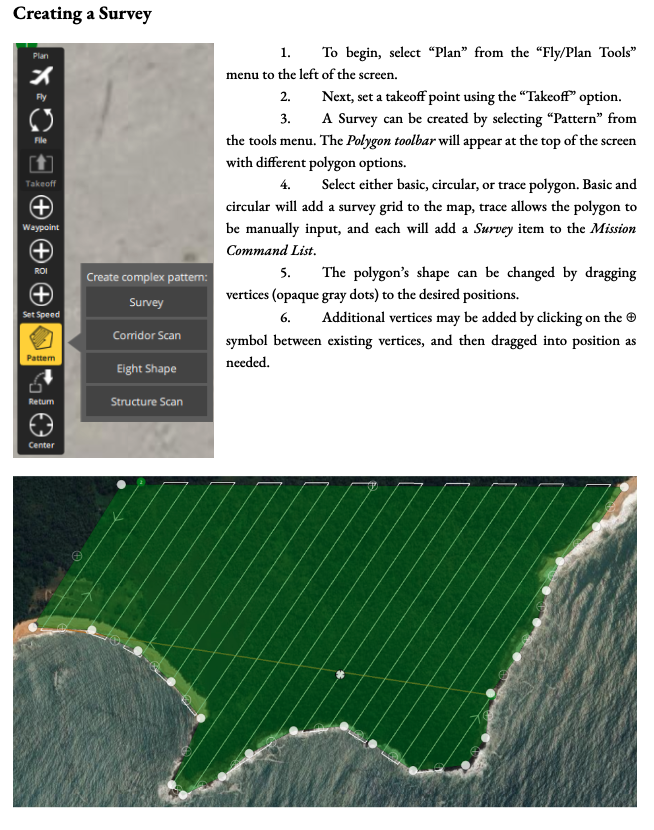
Settings
Training & Operation best practices
Mission Planning
Surveying
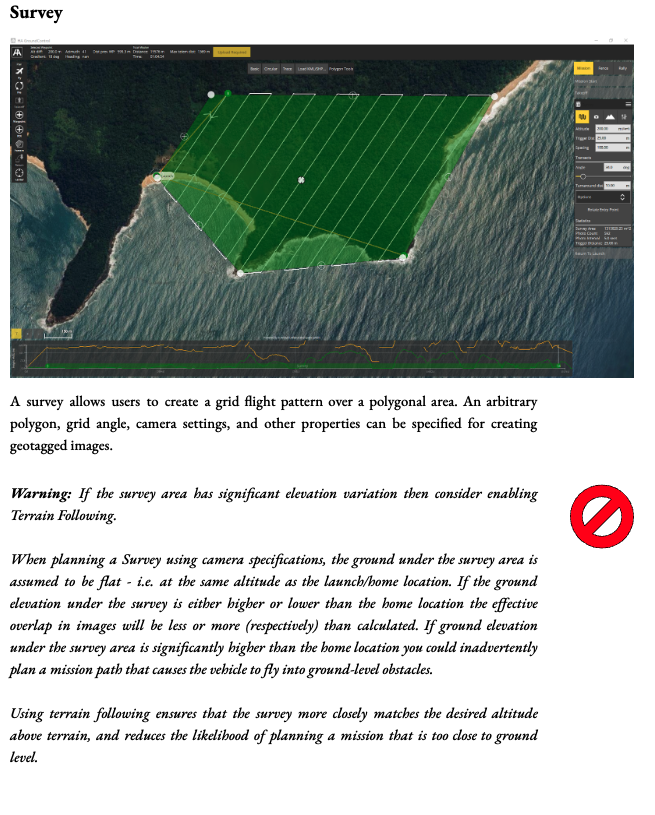
Settings
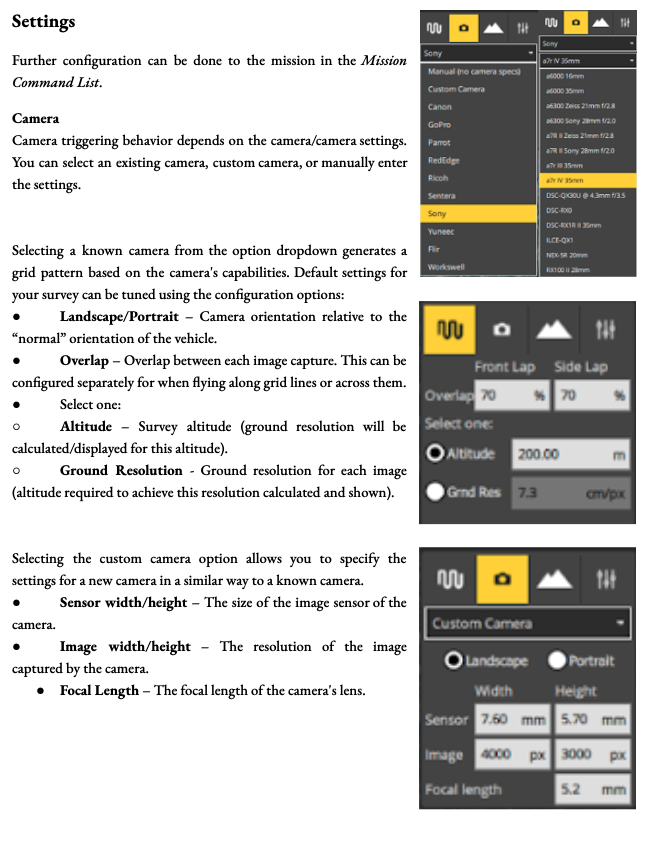
Training & Operation best practices
Mission Planning
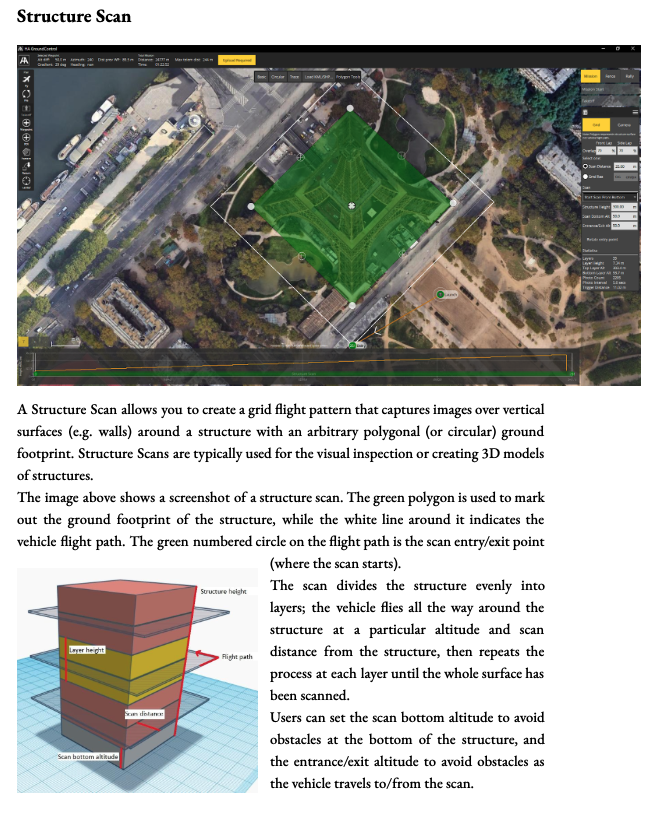
Structure Scan (Plan Pattern)
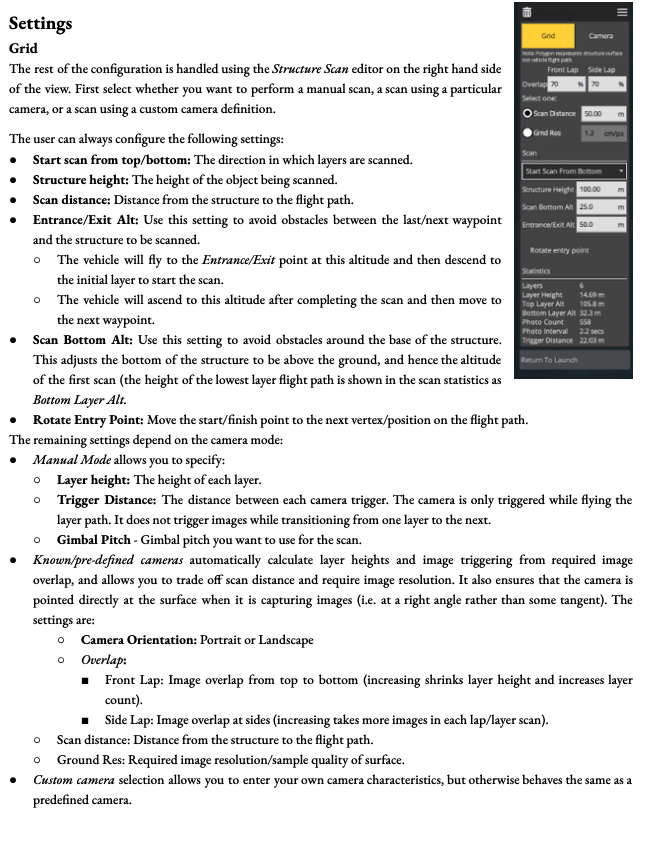
Structure Settings
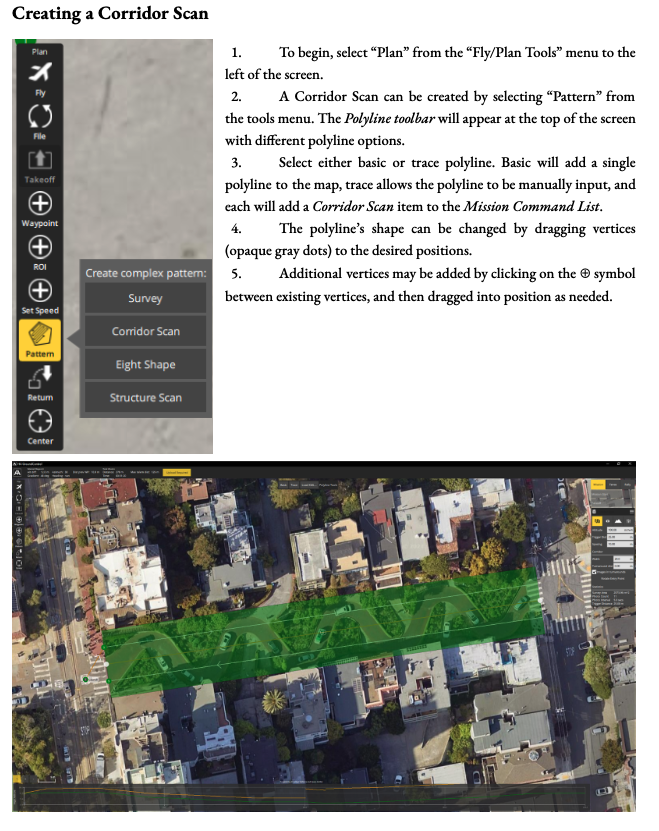
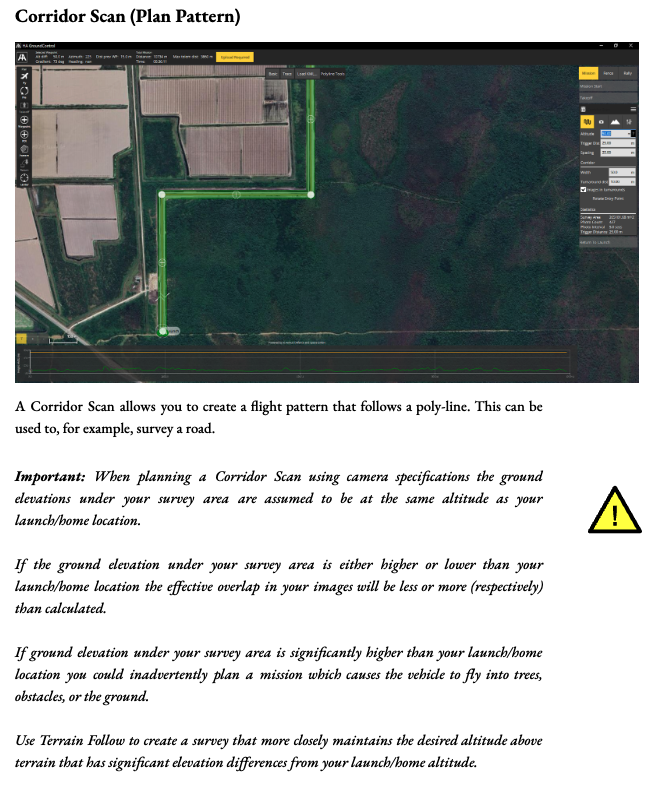
Corridor Scan (Plan Pattern)
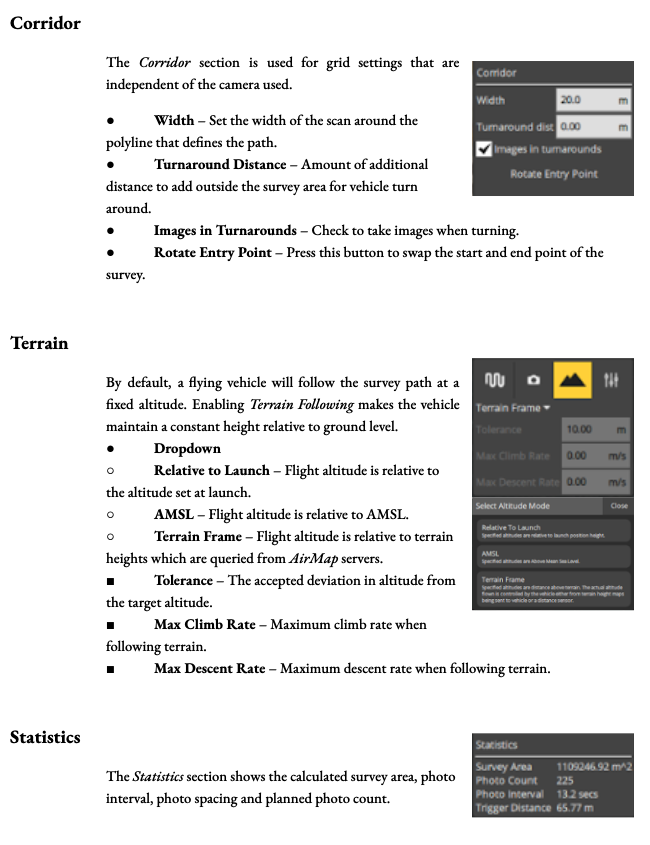
Corridor Settings
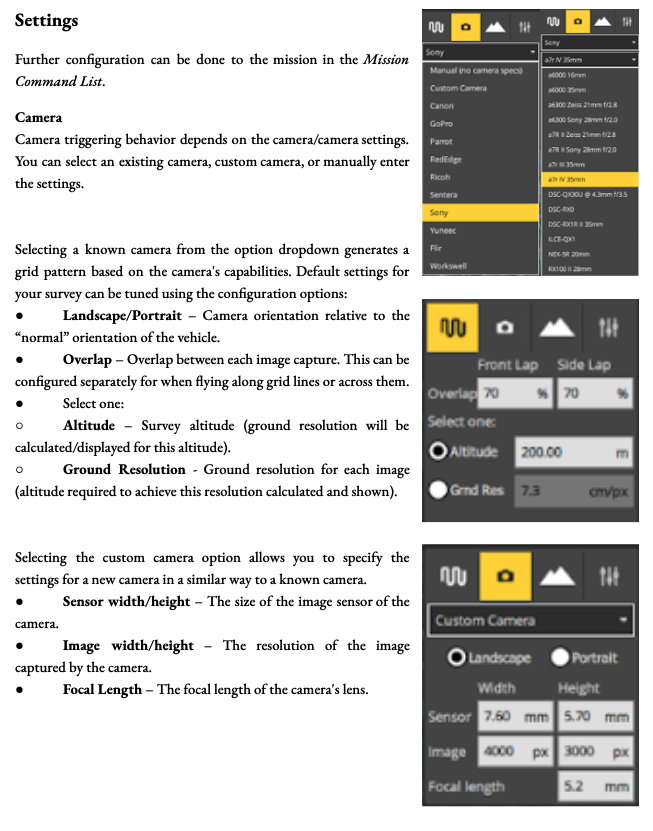
Training & Operation best practices
Mission Planning
Eight Shape
Submit A Ticket
Submit A Ticket
Training & Operational Best Practices
Pre Flight & Post Flight Procedures
Pre Flight Procedures
Training & Operational Best Practices
Pre Flight & Post Flight Procedures
Post Flight Procedures
Training & Operational Best Practices
Pre Flight & Post Flight Procedures
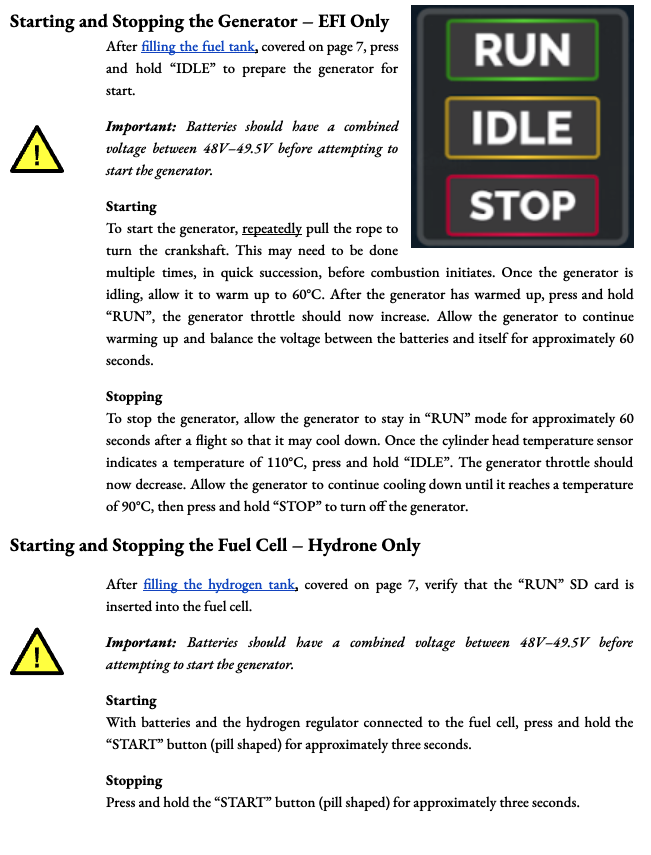
Starting & Stopping The Generator
Training & Operational Best Practices
Pre Flight & Post Flight Procedures
Arming & Disarming
Training & Operational Best Practices
Pre Flight & Post Flight Procedures
Autonomous Takeoff & Landing
Training & Operational Best Practices
Visual Line of Sight (VLOS) Best Practices
Maintain Direct Visual Contact:
- Always maintain direct visual contact with the drone during flight. This ensures that you can see and avoid obstacles, other aircraft, and changing environmental conditions.
- Use visual aids such as binoculars if necessary, but avoid relying solely on them for navigation.
Utilize Failsafe Features:
Return-to-Home (RTH):
- Program the RTH feature in your drone’s flight control software. This ensures that the drone will automatically return to its takeoff point or a pre-designated rally point if it loses signal or encounters an issue.
Rally Points:
- Set up multiple rally points in the flight area. These are predetermined locations where the drone can safely land if an issue arises during flight.
Submit A Ticket
Submit A Ticket
Training and operational best practices
Drone Features
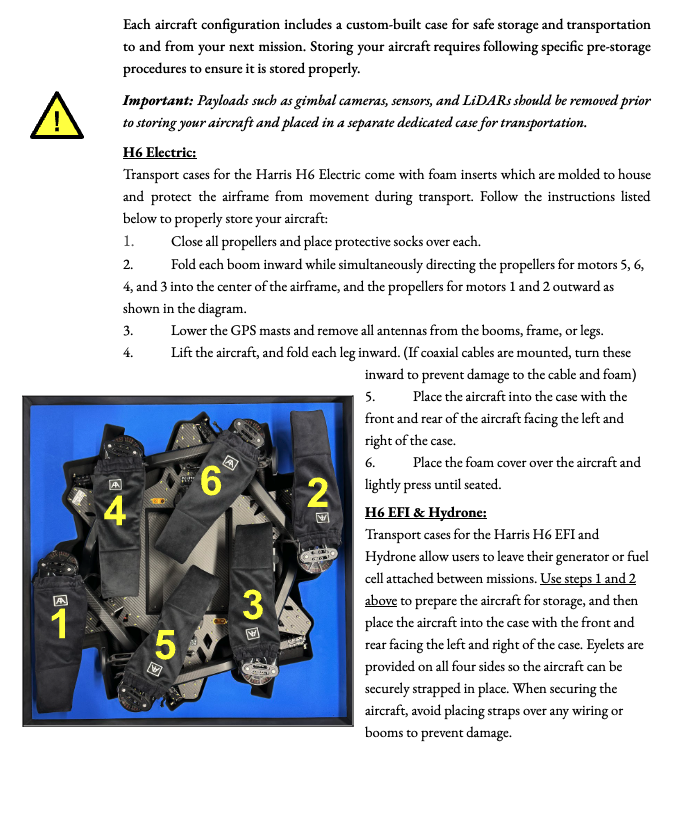
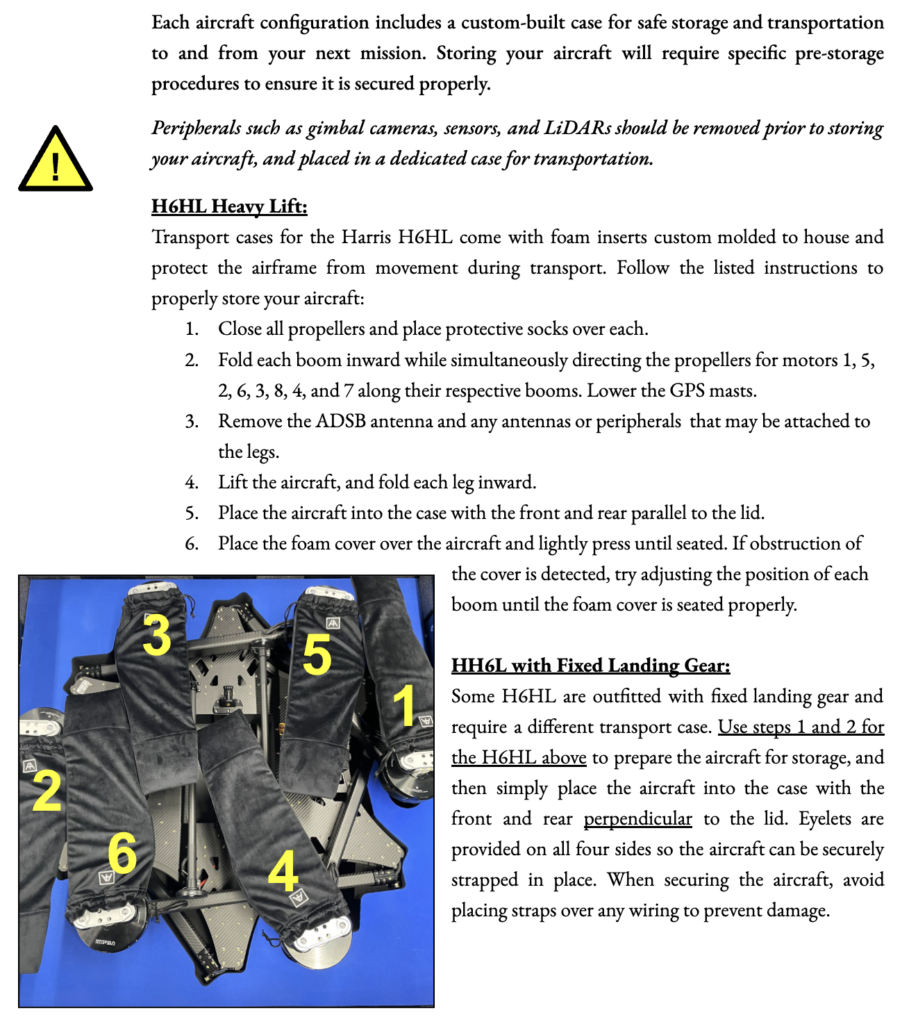
Drone Storage: H6 Models
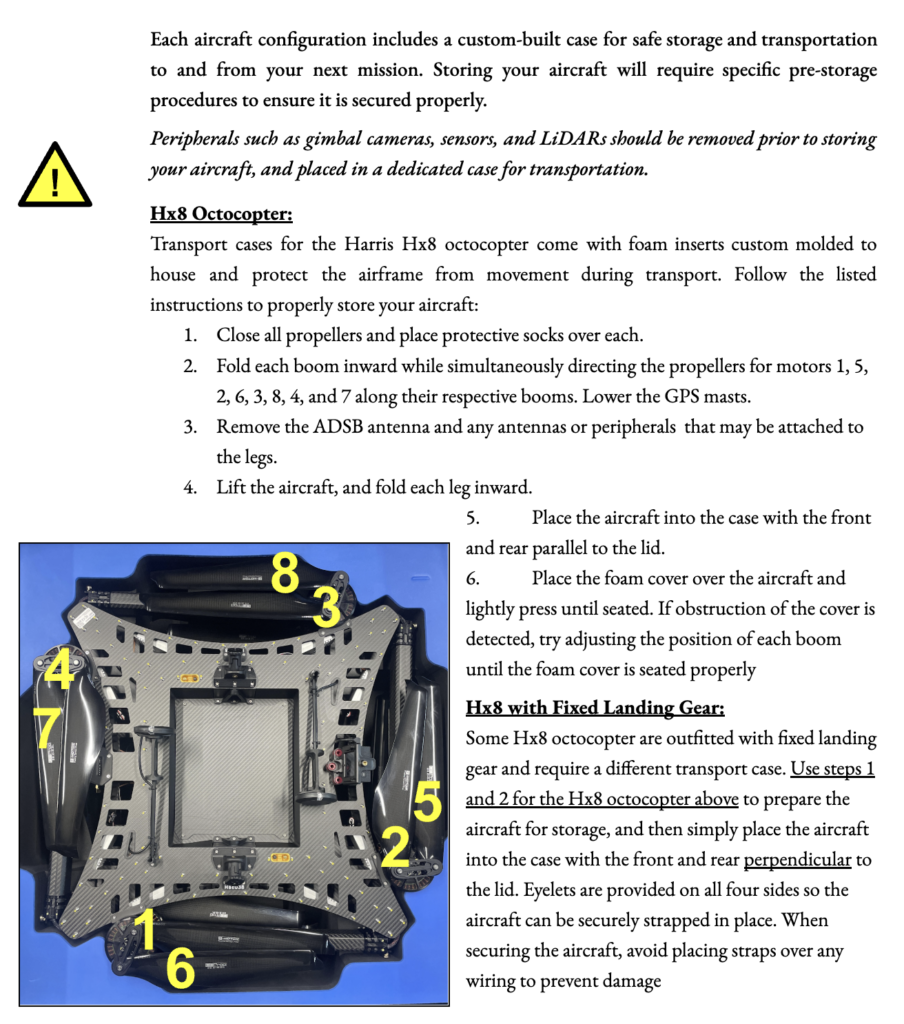
Drone Storage: Hx8 Model
Drone Storage: H6HL
Features
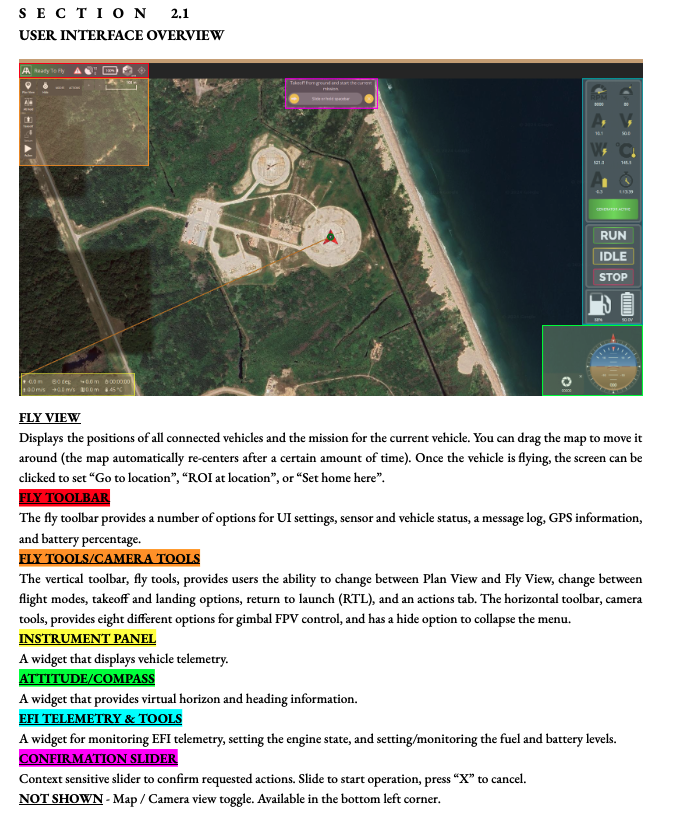
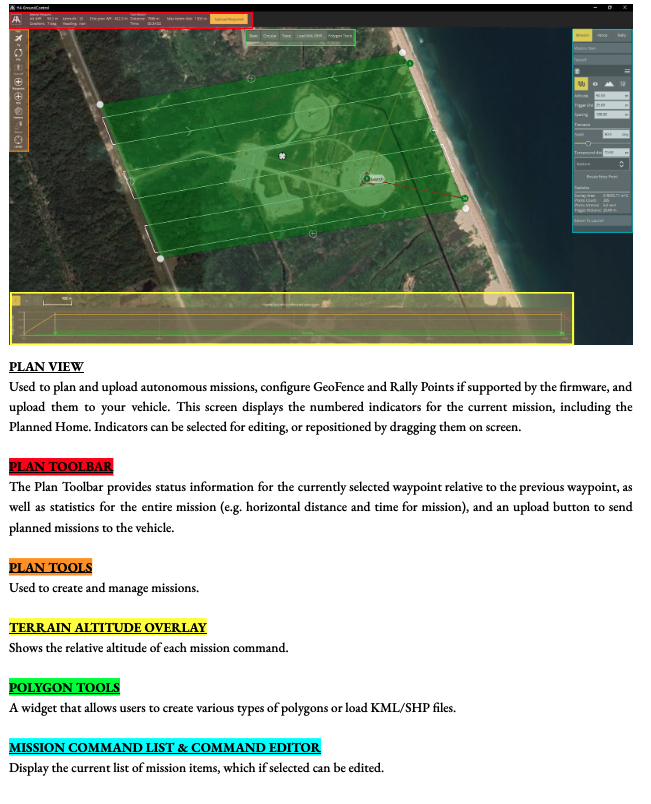
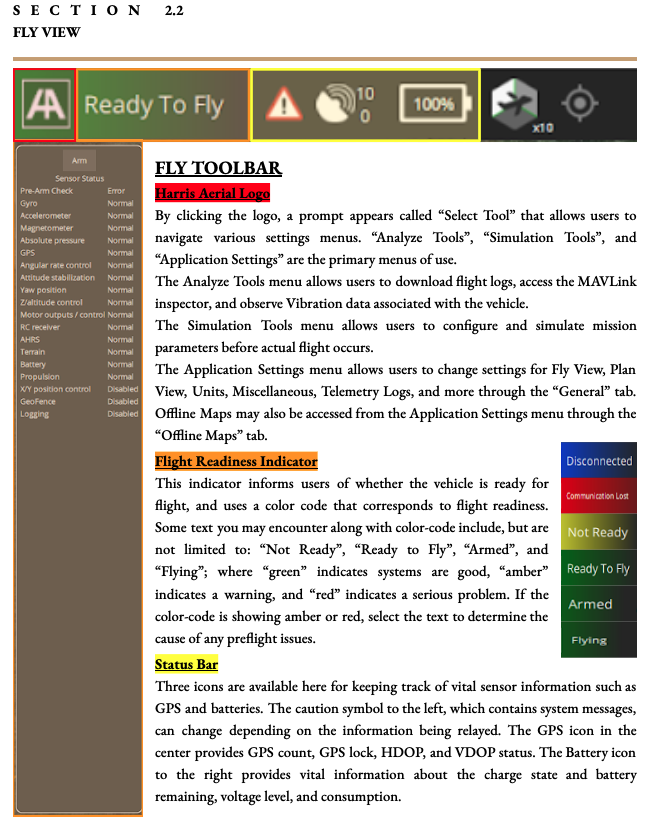
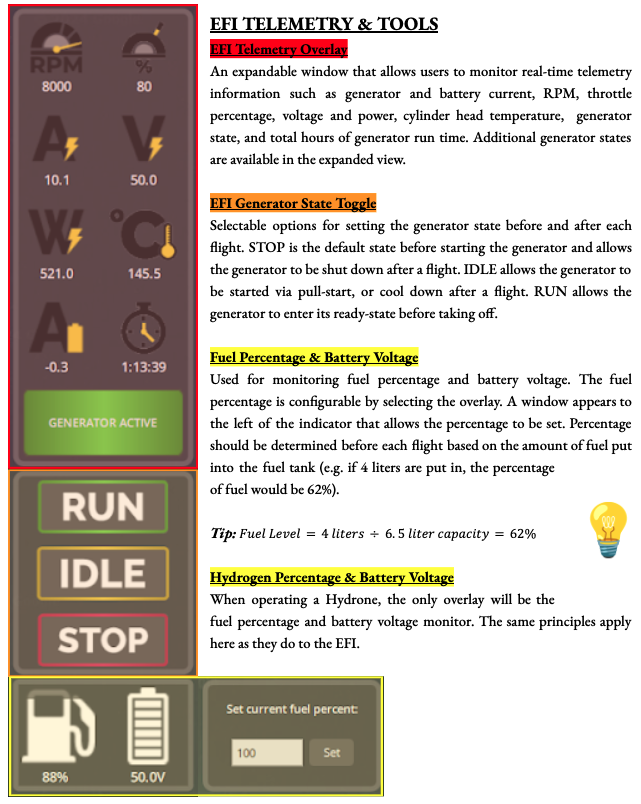
User Interface Overview
UI Overview
Fly View
Plan View
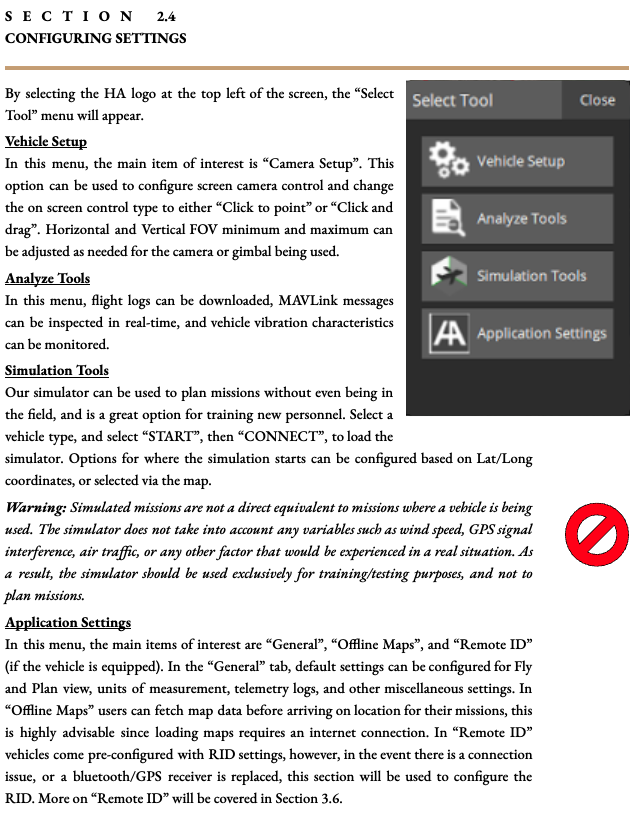
Configuration Settings
Training and operational best practices
Drone Features
Action Button
Change Altitude
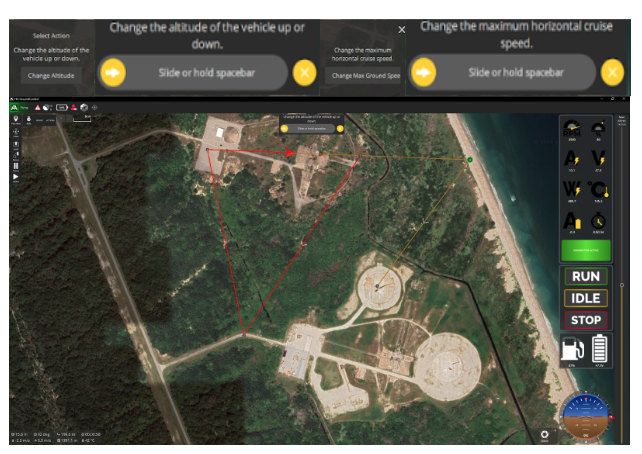
The altitude of the vehicle can be adjusted in manual flight if desired, but not during a mission. Click the Action button and select Change Altitude from the prompt at the bottom of the screen to open a vertical slider on the right side of the screen. Set the desired altitude for the vehicle, and confirm by using the slider at the top of the screen.
Change Max Ground Speed
The velocity of the vehicle can be adjusted in manual flight if desired, but not during a mission. Click the Action button and select Change Max Ground Speed from the prompt at the bottom of the screen to open a vertical slider on the right side of the screen. Set the desired speed for the vehicle, and confirm by using the slider at the top of the screen.
Training and operational best practices
Drone Features
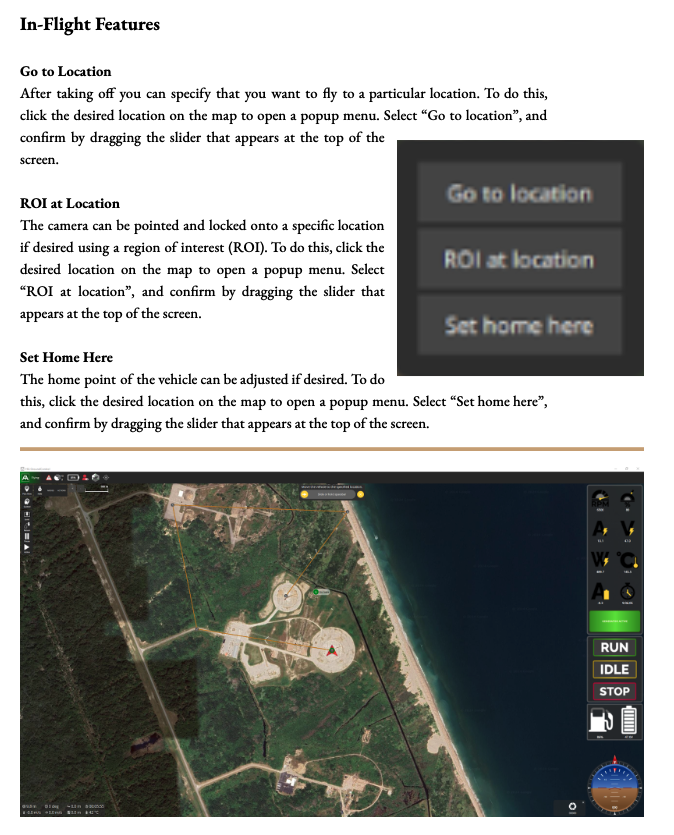
In Flight Features
Video Features
Video Features
If supported by the camera and vehicle, HA Ground Control can start and stop video recording on the camera itself and can also record the video stream and save it locally.
Video stored on the camera may be of much higher quality, but it is likely that your ground station will have a much larger recording capacity.
Record Video Stream
Video stream recording is controlled on the video stream instrument page. Press the red circle to start recording a new video (a new video file is created each time the circle is pressed); the circle will change into a red square while recording is in progress. This can all be configured in the Application Settings > General tab.
- Video Recording – specifies the recording file format and storage limits.
Important: Videos are saved in Matroska format (.mkv) by default. This format is relatively robust against corruption in case of errors.
- Miscellaneous – streamed video is saved under the Application Load/Save Path.
Important: The stored video includes just the video stream itself. To record video with HA Ground Control application elements displayed, you should use separate screen recording software.
Record Video on Camera
Start/stop video recording on the camera itself using the camera instrument page. First toggle to video mode, then select the red button to start recording.
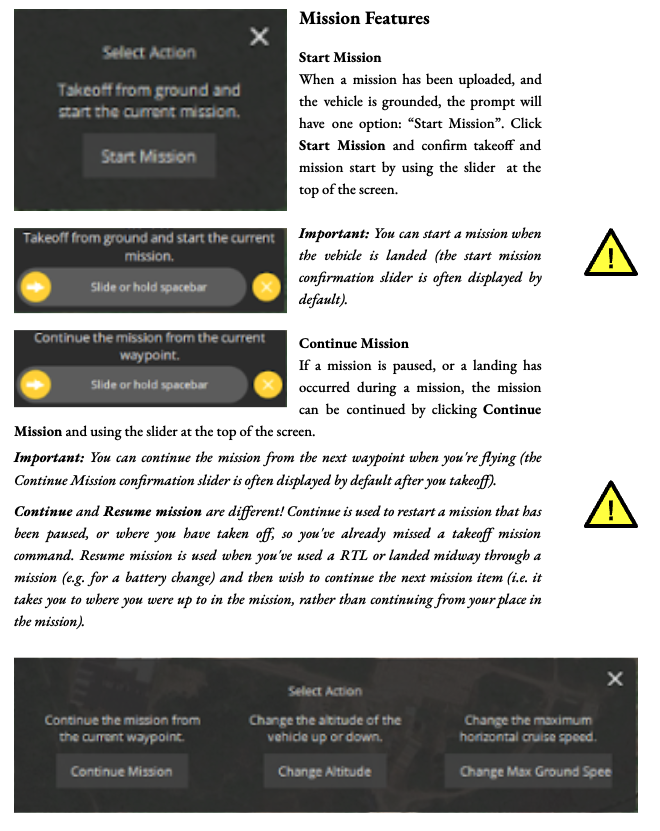
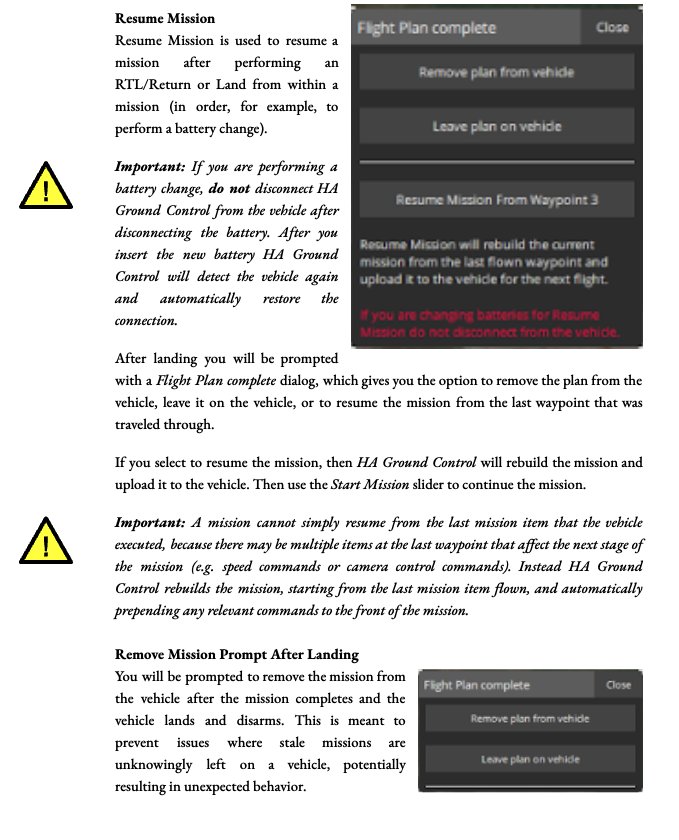
Mission Features
Flight Modes
Guided Mode
Purpose:
- Guided mode is used for automated flights following a pre-set path. This mode is ideal for missions that require precision and consistency, such as surveying, mapping, and inspections.
Operation:
- The drone follows a series of waypoints or a flight plan programmed into the flight control software.
- The operator can monitor the flight and make adjustments as needed, but the drone primarily follows the pre-set path autonomously.
Manual Mode
Purpose:
- Manual mode allows the operator to have direct control over the drone’s movements. This mode is best for situations that require dynamic and responsive control, such as manual inspections, filming, or emergency maneuvers.
Operation:
- The operator uses the remote control or Ground Control Station (GCS) to manually pilot the drone. This includes controlling altitude, direction, and speed without relying on pre-set waypoints.
- Manual mode requires a higher skill level and constant attention from the operator to ensure safe and effective flight.
Training and operational best practices
Drone Features
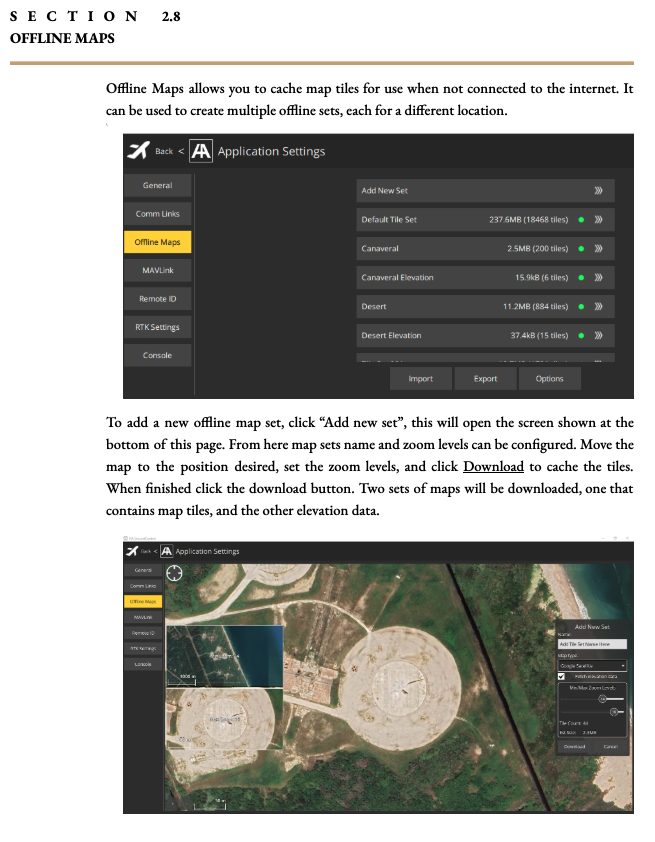
Offline Maps
Training and operational best practices
Drone Features
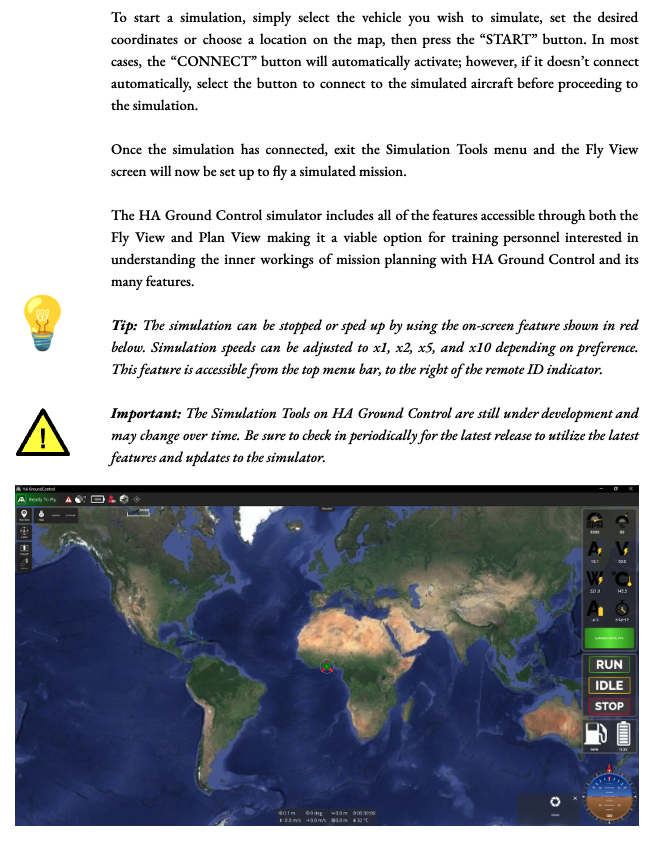
Simulation Tools